6 Confluence Page History Checks Before Restoring a Page
Use Confluence page history to compare playbook versions, protect valid edits and choose a targeted correction or an approved restore in Data Center.
A support team finds a disputed rule in its playbook. Identify the page and compare the affected versions before choosing how to correct it. Check what else would change and who can approve the rule.1
The short answer
Use Confluence page history to compare the disputed instruction with an earlier version. In Data Center, check what good edits a restore would undo and whether the page has an unpublished draft. Ask the page owner to approve a targeted edit or restore, then verify the current version.
1. Confirm which playbook agents used
- When it helps
- A support agent reports advice that conflicts with another instruction.
Identify the exact Confluence Data Center page and the sentence in dispute.
Start with the playbook link the agent actually opened and the phrase that led to the reported action. Record the space and page title, where the phrase appears and which type of case the agent was handling. If two pages have similar names, verify which one the team assigned for this queue before asking anyone to restore a version. That first check can keep the owner from editing a different playbook.
Make the report concrete. An agent might say the guide requires manager approval while their lead says a supervisor can act. Ask whether the issue concerns all requests or one region, tier or exception. If the difference is legitimate, the page may need a clearer condition rather than an older version. Keep the case details in the support system and send only the excerpt the authorized page owner needs.
Confirm you are working in Confluence Data Center before following these controls. Atlassian’s Data Center history guide documents how to open Page History and view a numbered revision. If someone is using a different edition or can’t see the menu, record that limit and ask the owner to use the instructions for their environment.1
Review notes
- What to watch
- Confirm the page and use case before comparing versions.
2. Compare the current and earlier versions
- When it helps
- The team has the correct page and a disputed instruction.
Use Page History to locate the change and compare the relevant versions.
Atlassian describes opening Page History from More options and selecting a version number to view it. The documented compare control lets an authorized reader select two versions and choose Compare selected versions. Start with the current version and a candidate from before the disputed instruction appeared. If that is too large a comparison, check adjacent versions to narrow down the change.1
Record the current version and the version that introduced the disputed wording, if the comparison confirms it. Then open the full older page where the exact placement of a warning or condition matters. Atlassian notes that its comparison view condenses large unchanged sections. Read the full text when the change only makes sense in context.1
For example, compare an earlier approval step with the new paragraph. Determine whether the new instruction replaced the rule, added a separate case or moved the same warning elsewhere. The comparison alone does not tell the team which rule policy owners intended. Send the relevant excerpts to the person who can determine whether the wording is wrong.
Review notes
- What to watch
- A version comparison shows the text change. Policy approval is a separate check.
3. List valid edits a restore would undo
- When it helps
- The older version contains the desired wording but differs elsewhere.
Read the full difference and identify changes the team wants to keep.
Check the parts of the page unrelated to the disputed sentence. Look for an updated escalation route, corrected links, required notices or changes that other queues depend on. Copy only the necessary notes into the approved review record. If one incorrect step sits alongside correct changes, ask whether the owner can edit that step in the current page.1
Consider a fictional billing playbook. Version 42 changes the approval sentence and fixes the weekend escalation contact. Version 41 has the earlier approval sentence but the wrong weekend contact. Compare both changes before deciding. If the policy owner confirms that only the approval sentence is wrong, a targeted edit preserves the contact. A full restore needs a plan to retain or reapply that valid correction. Write a small side-by-side record with the passage, what each version says, the policy decision and the check after the change. For the approval row, the owner checks the wording against the approved rule. For the weekend contact row, have a queue lead confirm the destination still works. The two rows can have different owners and can pass at different times.
Write down what must survive and who verified it. A comparison showing several edits cannot establish which ones were approved just by their position in the list. Ask a second owner about sections they maintain. Give staff something they can verify after the change, such as the new approval sentence and the still-correct weekend contact.
Review notes
- What to watch
- A full restore applies the older version’s content to the page.
4. Choose a targeted edit or an approved restore
- When it helps
- The page history identifies the scope of the bad content.
Make the decision with the page owner using the verified policy and version comparison.
If the owner confirms only one instruction is wrong, a targeted edit lets the team retain the current page’s valid changes. If many related changes need to be reversed and the earlier page has been cleared by the owners, a restore may be suitable. Record the exact version and the reason before applying it. Check the team’s procedure for review and permissions.1
Atlassian warns that a restore discards the content of an unpublished draft and says Confluence warns when one exists. If there is a draft, ask who owns the edits and settle how to preserve them before proceeding. Include that check even when the previous page looks correct. Clearing a warning does not by itself mean the draft’s changes were reviewed or saved.1
An owner may learn that neither version matches the current policy. Pause the restore decision in that case. Ask for approved wording, use the agreed interim instructions for agents and keep the exact open issue with the case. The history helps the team identify what changed. It does not grant permission to reinstate an instruction that policy no longer supports.
Review notes
- What to watch
- Check for an unpublished draft before an authorized restore.
5. Verify the page after the correction
- When it helps
- The owner has applied an approved change.
Check the new current version and the affected passage after editing or restoring.
Atlassian says restoring an older version creates a copy that becomes the new current version. After a restore, use the new current version in the case record and record the older version it came from separately. If the owner made a targeted edit instead, verify the corrected sentence in the current page. In both cases, check the reader view with the right access.1
Return to the two or three things that motivated the correction. In the billing example, check the approval rule and the weekend contact in the new current page. If a link was part of the problem, check that it points to the intended place through the normal access path. Leave the item open if that check still needs another owner.
Ask one agent affected by the change to verify the instruction on the page they ordinarily use. In the review record, capture the page link, current version and the result they confirmed. If that agent sees old wording, first confirm they opened the same page. A new correct version at one link does not establish that all team bookmarks now point there.
Review notes
- What to watch
- Confirm the expected wording and the unrelated valid changes together.
6. Tell agents what changed and when to use it
- When it helps
- The owner has verified the live playbook correction.
Share the approved rule, current page link and the next owner if exceptions remain.
Give the affected agents a short update with the corrected instruction and the cases it covers. Include the current page link so they can check the surrounding conditions. If an older reply template still quotes the disputed rule, give the template owner the exact discrepancy and a follow-up. A playbook correction and a template correction may need separate tracking.
With approved support data, a lead can use Pluno Quality Assurance to check eligible resolved human-agent replies against a custom criterion for using the verified playbook instruction. Staff can review flagged responses alongside the approved wording and applicable case conditions. The score describes the reply. It does not select a Confluence version or grant approval to restore anything.2
Close the issue when the corrected wording is visible, staff have the current link and someone owns any follow-up work for the affected templates or cases. Record the exact wording only where the team can store it. If policy approval is still open, state which question remains and avoid describing the earlier version as the new rule.
Review notes
- What to watch
- Check staff responses using authorized evidence when follow-through matters.
Putting it into practice
Use the version comparison to explain the change and the policy owner’s decision to choose the fix. Verify the corrected instruction and the edits the team meant to keep before closing the case.
Sources
- Atlassian Confluence Data Center — Page History and Page Comparison Views
Checked 27 November 2026 · Page History, version comparisons, restore behavior and unpublished drafts.
- Pluno Quality Assurance
Checked 27 November 2026 · Custom scoring of eligible resolved human-agent replies.
How this guide was researched
Support Knowhow examined Atlassian’s Data Center version comparison and restore documentation. The internal support cases are fictional.
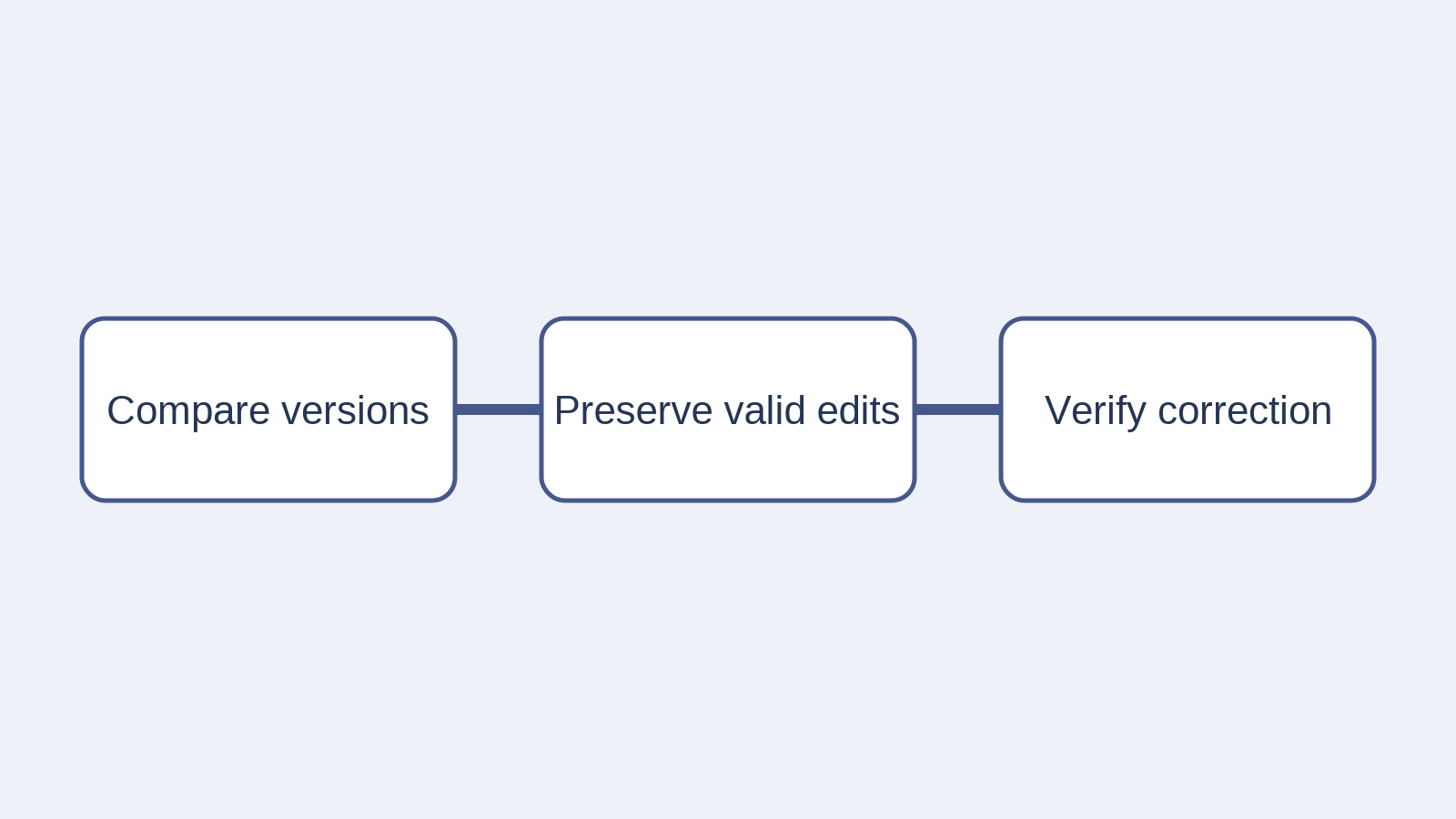
Compares a wrong approval instruction against a valid escalation edit and gives separate checks for preserving and verifying each.
Editorial standards