Zendesk Content Blocks: 6 Checks Before a Shared Edit
Before editing Zendesk content blocks, list the articles that share the text. Use those pages to decide whether the edit should be shared or article-specific.
An agent asks for one sentence to change in a help article. The sentence comes from a shared block. Check which other articles use it before approving wording that might be wrong on one of those pages.12
The short answer
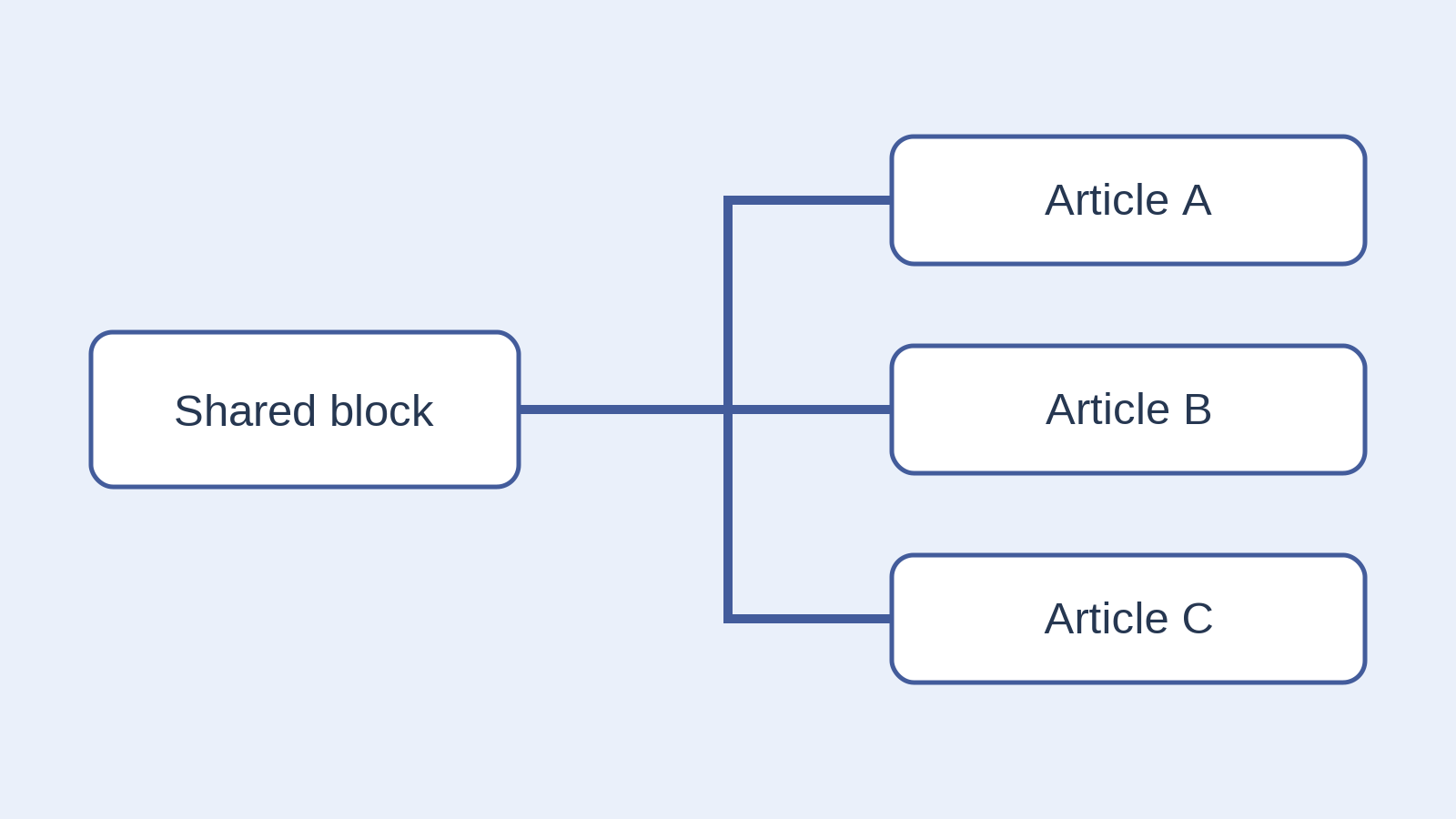
Before changing Zendesk content blocks, open the exact block and check every article that uses it. A shared edit updates all of those articles. If the change fits only one page, send it to that article’s owner. For a shared edit, ask a permitted editor to update it and verify the affected pages.
1. Find the exact block
- When it helps
- Several blocks have similar titles.
Match the proposed edit to the block in Knowledge admin.
The Zendesk content blocks list shows the blocks, recent edits and which articles use each one. Open the exact block from Content objects in Knowledge admin, then compare its wording with the change request.1
Review notes
- What to watch
- Check the body text and last edit so you select the right one.
2. List the articles that use the block
- When it helps
- The request names only a single help article.
Use the editor links to open the affected articles.
Zendesk says the block editor links to articles that contain the block. Record the linked pages. For each one, note whether the proposed sentence would still be accurate in the surrounding article.1
Review notes
- What to watch
- Check product, audience and language context before approval.
3. Decide if the change is shared
- When it helps
- An exception applies to one product or one workflow.
Use the shared block only when the change belongs in all of its articles.
Zendesk applies a block update to every article where it is used. If the wording applies only to one article, treat that as an article-level change. Put the proposed edit and affected pages in the owner handoff.2
Review notes
- What to watch
- Route article-specific language to the relevant article owner.
4. Confirm who can update the block
- When it helps
- The requester can open an article but cannot update the block.
Send the scope and wording to a Knowledge admin or permitted agent.
Zendesk requires a Knowledge admin or an agent with permission to update content blocks. The editor can open the block from the list or from an article that uses it.2
Review notes
- What to watch
- Ask the authorized editor to confirm the impact before applying it.
5. Review the changed text on the linked pages
- When it helps
- The shared update has been applied.
Check the new wording in context after the editor saves the change.
Zendesk explains that shared block edits appear automatically in articles that contain the block without changing their publication status. Open the affected pages after the update and check that the wording still fits each one.21
Review notes
- What to watch
- Record the pages checked and flag any mismatch to the owner.
6. Check a support reply against the updated page
- When it helps
- Agents use the affected help pages to answer repeat questions.
Use an approved test question to see whether the agent reply points to the correct article.
A team using Pluno AI Copilot in Zendesk can review a suggested reply and open its cited source after a knowledge edit. Compare that source with the updated article before using the reply. Verify the article itself and send any mismatch to the knowledge owner.3
Review notes
- What to watch
- Review the live page before trusting any suggested reply.
Putting it into practice
Record the exact block, linked articles and approval owner. Use that list to choose an article edit or a shared change, then check the affected pages before closing the request.12
Sources
- Zendesk — Viewing the content blocks list
Checked 25 November 2026 · Lists shared blocks, edits and articles using each block.
- Zendesk — Editing content blocks
Checked 25 November 2026 · Edit permissions and changes across articles using a block.
- Pluno — AI Copilot
Checked 25 November 2026 · Suggested Zendesk answers with linked sources and agent verification.
How this guide was researched
Support Knowhow compared Zendesk’s official content block instructions. The change impact and verification sequence is original editorial guidance.
Uses an affected-article list to decide between a shared edit and a local change.
Editorial standards